Computers require different types of storage for different reasons. Some data needs to be kept permanently, some needs to be kept for a long time but not forever, and some data can be deleted as soon as it's used.
Storage types are categorised as primary or secondary.
Primary storage can be accessed directly by the CPU, so must be very fast!
Primary storage types are:
- Random Access Memory (RAM)
- Read Only Memory (ROM)
- CPU cache
- Virtual memory
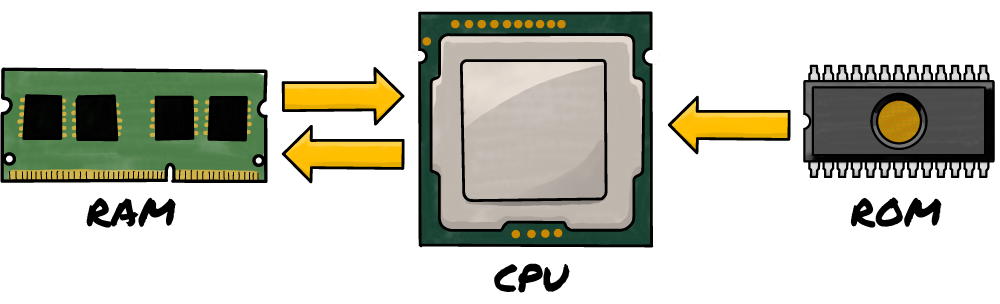
Random Access Memory (RAM)

Stores programs and data currently in use
Data can be added, changed, or deleted
Volatile – data is lost when power is turned off
Read Only Memory (ROM)

Used for starting-up the computer (stores the BIOS)
Data is added when the chip is manufactured. It cannot be added it, changed, or deleted
Volatile – data is kept when power is turned off
CPU Cache

CPU cache is a type of primary storage.
- It stores instructions and data frequently used by the CPU
- It is closer to the CPU, and much faster than RAM, so improves performance
- Like RAM, it is volatile – its contents are erased when power is lost
CPU cache is covered in more detail in 1.1.2 CPU Performance.
Virtual Memory
RAM stores programs and data which are currently in use. Most modern computers have 8 or 16 gigabytes of RAM. We may have lots of programs open at the same time (including many system processes running in the background), which can quickly fill-up RAM.
When RAM is full, programs can be frozen and temporarily transferred to secondary storage until needed. This is called virtual memory.
-
Using Virtual Memory
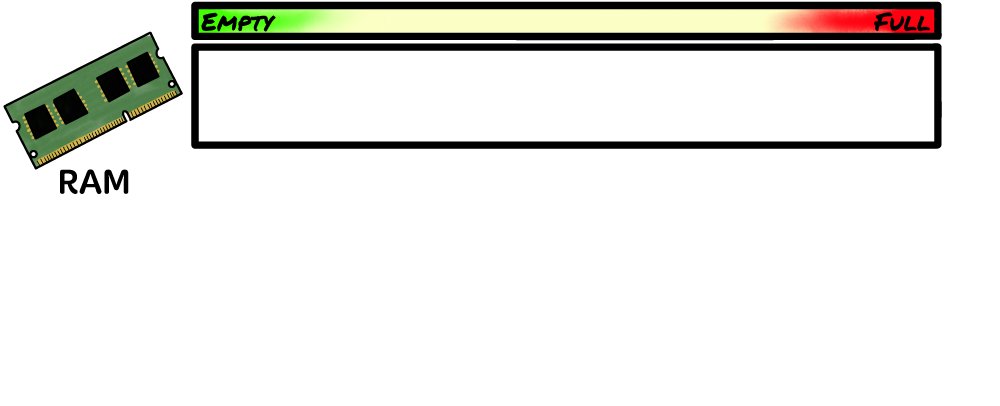
When the computer is first switched on, RAM is empty. Its previous contents will have been lost when the device was switched off or rebooted.
Using Virtual Memory
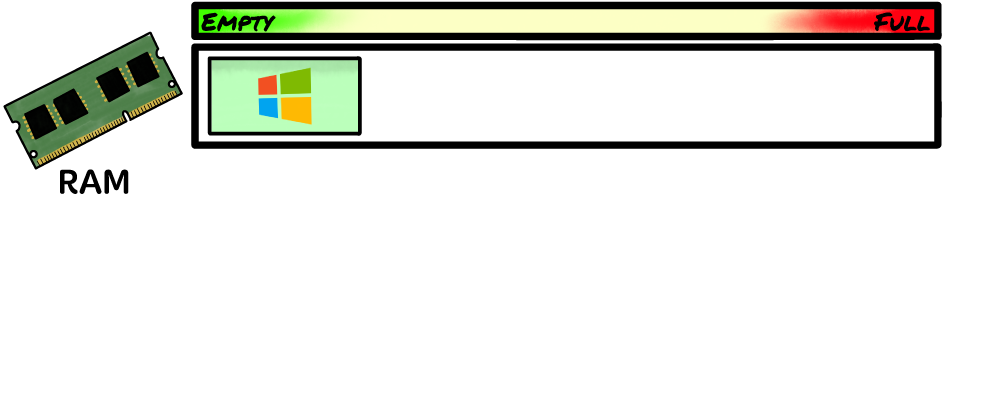
The operating system is transferred from secondary storage into RAM.
The operating system may be Windows, iOS, Android, or a different platform. More information on operating systems is in Unit 1.5: Systems Software.
The secondary storage may be the device's hard disk or solid state disk.
Using Virtual Memory
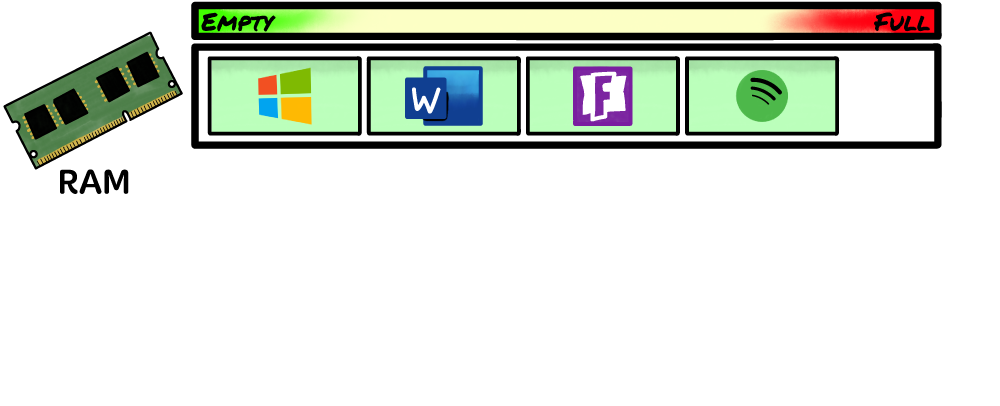
The user may open more programs and documents. Whilst open, they too are stored in RAM.
Using Virtual Memory
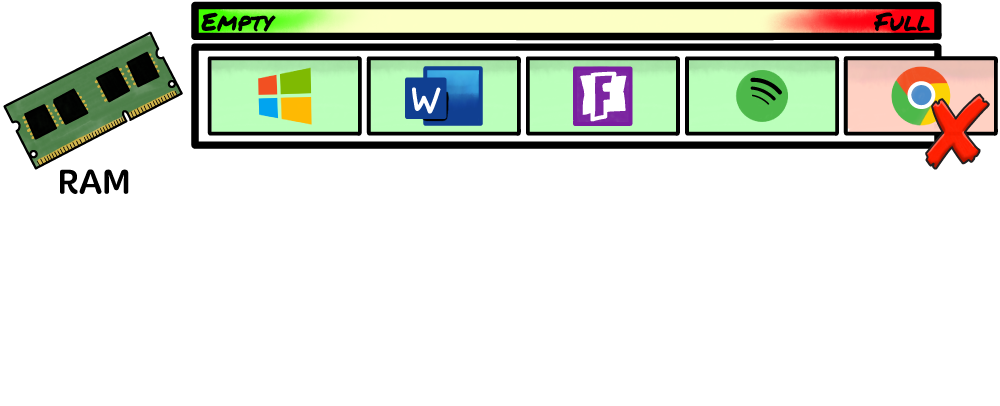
RAM will become full if the user tries to open more programs and data than it can store.
This would prevent more programs and data being opened, or could crash the system.
Using Virtual Memory
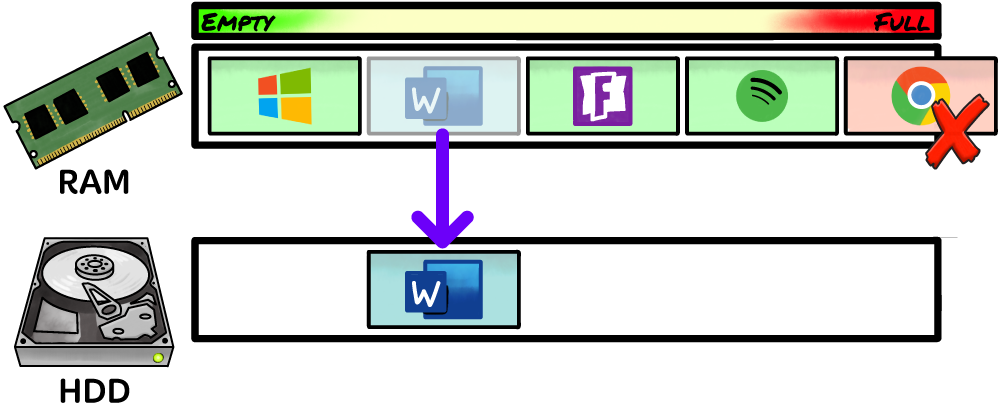
To allow more programs to be open than can be stored in RAM, programs which are open but not being used are paused and moved to virtual memory.
Virtual memory is free space on secondary storage. Secondary storage has much more capacity than RAM.
Using Virtual Memory
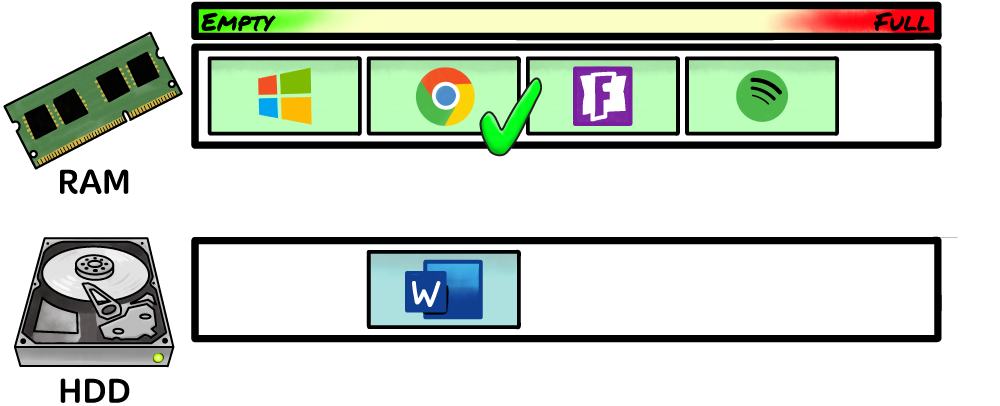
This frees-up space in RAM and allows the new program or data to be stored and accessed by the CPU.
Using Virtual Memory
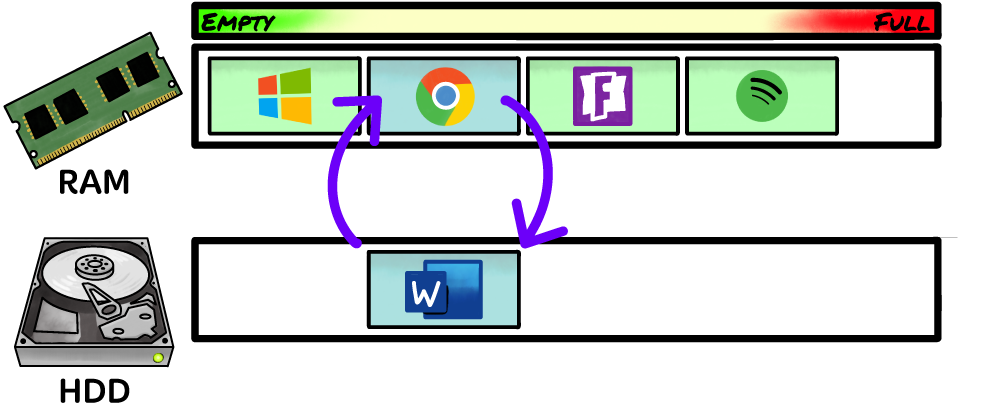
When a data in virtual memory is needed, it is swapped with other data stored in RAM.
The user is largely unaware that programs and data are constantly being swapped between RAM and secondary storage. However, secondary storage is much slower than RAM so they may notice their system's performance deteriorate.
Pros and Cons of Using Virtual Memory
- Allows more programs and data to be used than can be stored in RAM.
- A cheap and easy alternative to buying more RAM.
- System performance is affected as data is transferred between fast RAM and slower secondary storage.
- Increased wear and tear on secondary storage, shortening its lifespan.