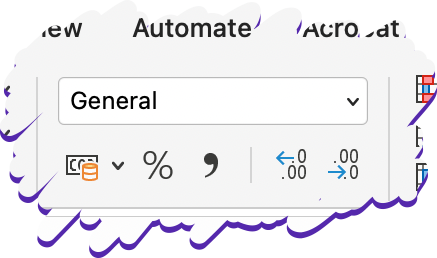
Now we have done some basic calculations, we should look at how to format data. This changes how data looks, not the actual value. It is important because it forms part of our Human Computer Interface requirements, and also tells the computer how to process certain types of data (e.g. currency).
The Format options are on the Home tab.
Formatting Numbers
Number Format

Used for general numbers (e.g. quantities, scores). You can change the number of decimal places.
Currency Format

Used for monetary values. The £ symbol and two decimal places are automatically used.
Percentage Format

Used for percentages. Enter values as a decimal (e.g. 0.25 → 25%)
Date Format

Used for dates. Enter values in the following format: DD/MM/YYYY. You can change the display style.
Formatting Text

Use the Text format for cells which contain alphanumeric data.
This is important as it prevents numbers from being changed. For example:
- Let's look at this phone number: 020 7930 4832
- If the computer treats it as a number, it will change it to 2079304832
- It has removed the zero from the start. This is no longer a valid phone number, so our data is incorrect.
- Also, the missing spaces make it more difficult to read.
- Using the Text format, the leading zero and spaces are kept.
However, be careful when using the Text format. Excel may treat your formula or function as text rather that a calculation to be performed.