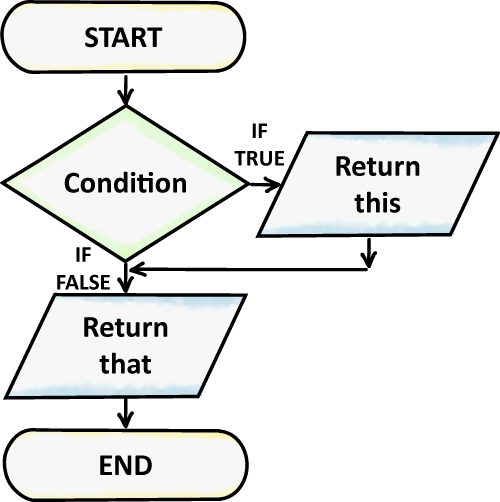
An IF statement allows a spreadsheet to make a decision.
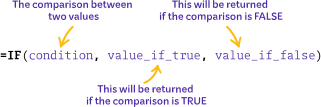
It checks if a condition is true. If it is true, it returns a value. If it is false, it returns a different value.
Using an IF Statement
In this example, you will use an IF statement to determine if each student has passed or failed their test. Only students who score 50 or higher pass.
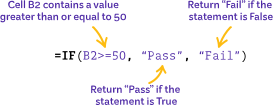
- Click C2 and type: =IF(
- Enter the condition to check: B2>=50
- Type the comma ,
- Type what should happen if true (e.g. "Pass")
- Add another comma ,
- Type what should happen if false (e.g. "Fail")
- Close the bracket ) and press Enter
COUNTIF
COUNTIF returns the number of cells which meet a specific condition. We can use it to count how many students passed and how many failed. Now try this:
- Add a COUNTIF statement to cell C10 to return the number of students who passed.
- Add a COUNTIF statement to cell C12 to return the number of students who failed.
If you cannot remember how to use the COUNTIF function, click here: COUNTIF Tutorial.
Common Conditions
| Symbol | Meaning | Example |
|---|---|---|
| = | Equal to | A1=50 |
| > | Greater than | A1>50 |
| < | Less than | A1 50 |
| >= | Greater than or equal to | A1>=50 |
| <= | Less than or equal to | A1<=50 |
| <> | Not equal to | A1<>50 |
Common Mistakes
- Forgetting quotation marks "" around text
- Missing commas between parts
- Incorrect cell references
- Using text instead of numbers in conditions